How to create cases
Creating a new case
Navigate to the case management page and click on the new case tab.
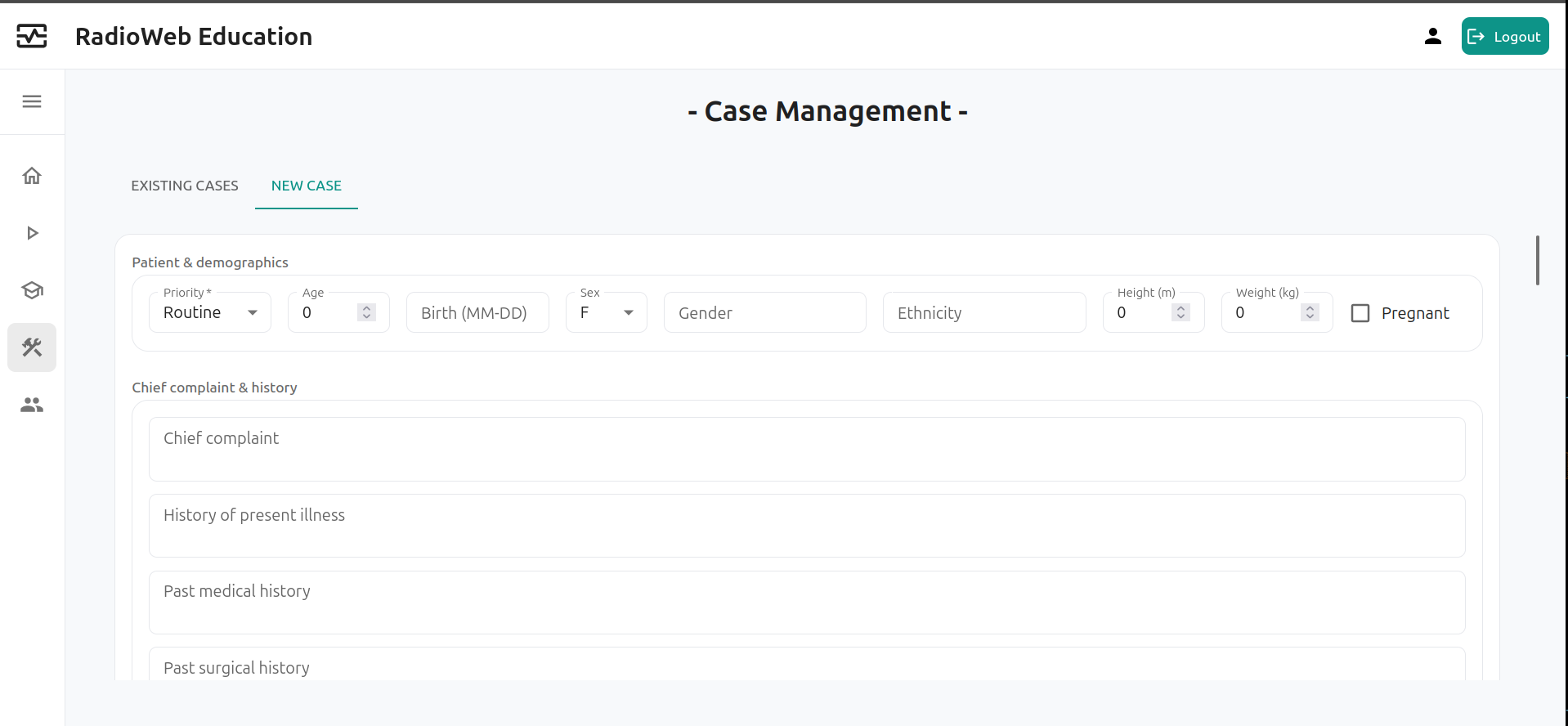
Fill in at least the fields that are marked as mandatory using a *.
INFO
The author field can only be changed by an administrator. It always reflects the username of the teacher that created the case.
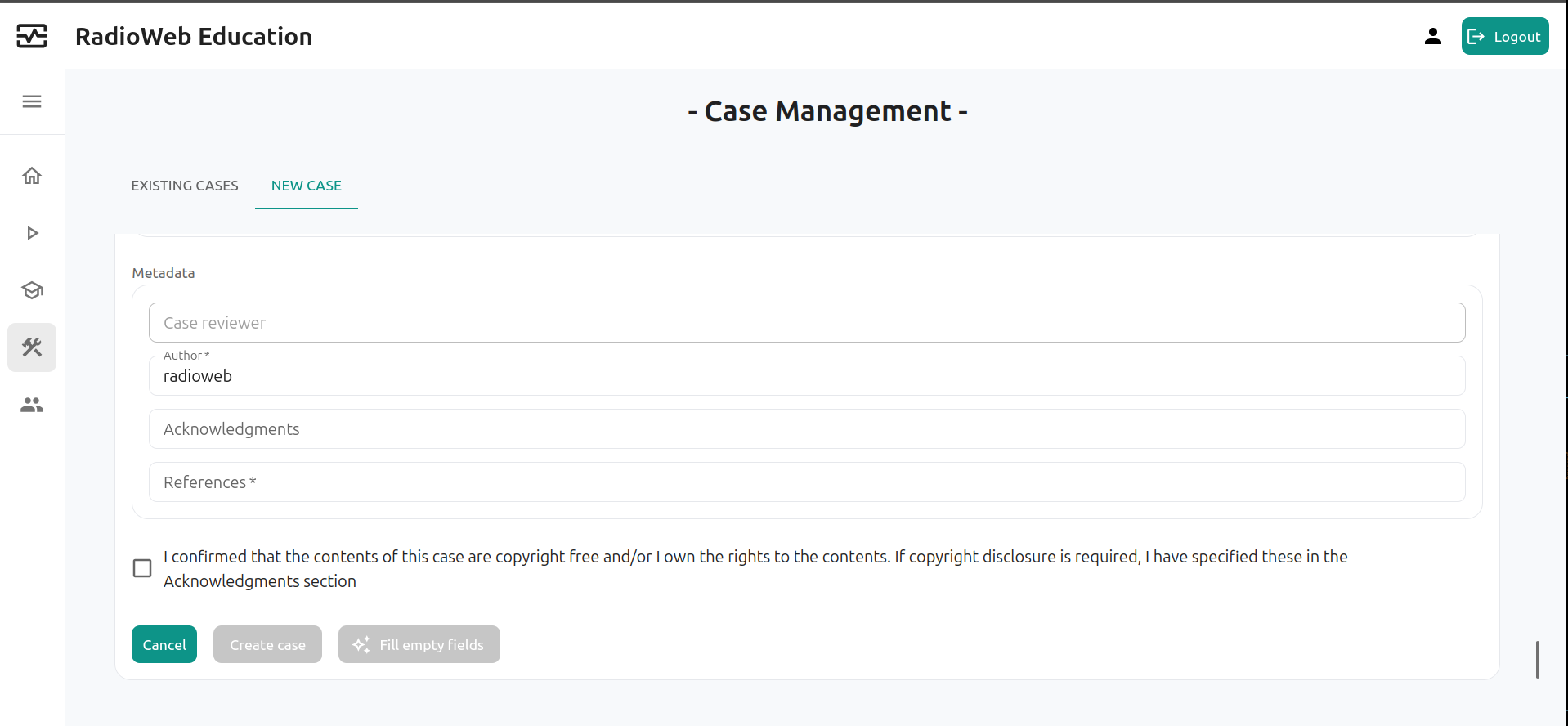
You need to confirm that you have the rights to the contents of the case you attempt to create and have disclose relevant informations if needed in the Acknowledgments section.
Using AI to fill empty fields
Once all mandatory fields have been inserted, you can use the ✨ Fill empty fields button to let the AI generate the rest of the fields.

TIP
Make sure the generated values are coherent. RadioWeb uses OpenAI's GPT 4o model, which is quite performant but just as any generative artifical intelligence model, it can make mistakes or have biases.
Approval process
Once a case is created, it needs to be approved by another teacher or admin. Other accounts that have access to the case managment page can see the created case and can review and approve it.
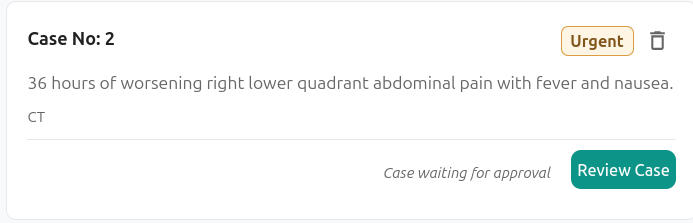
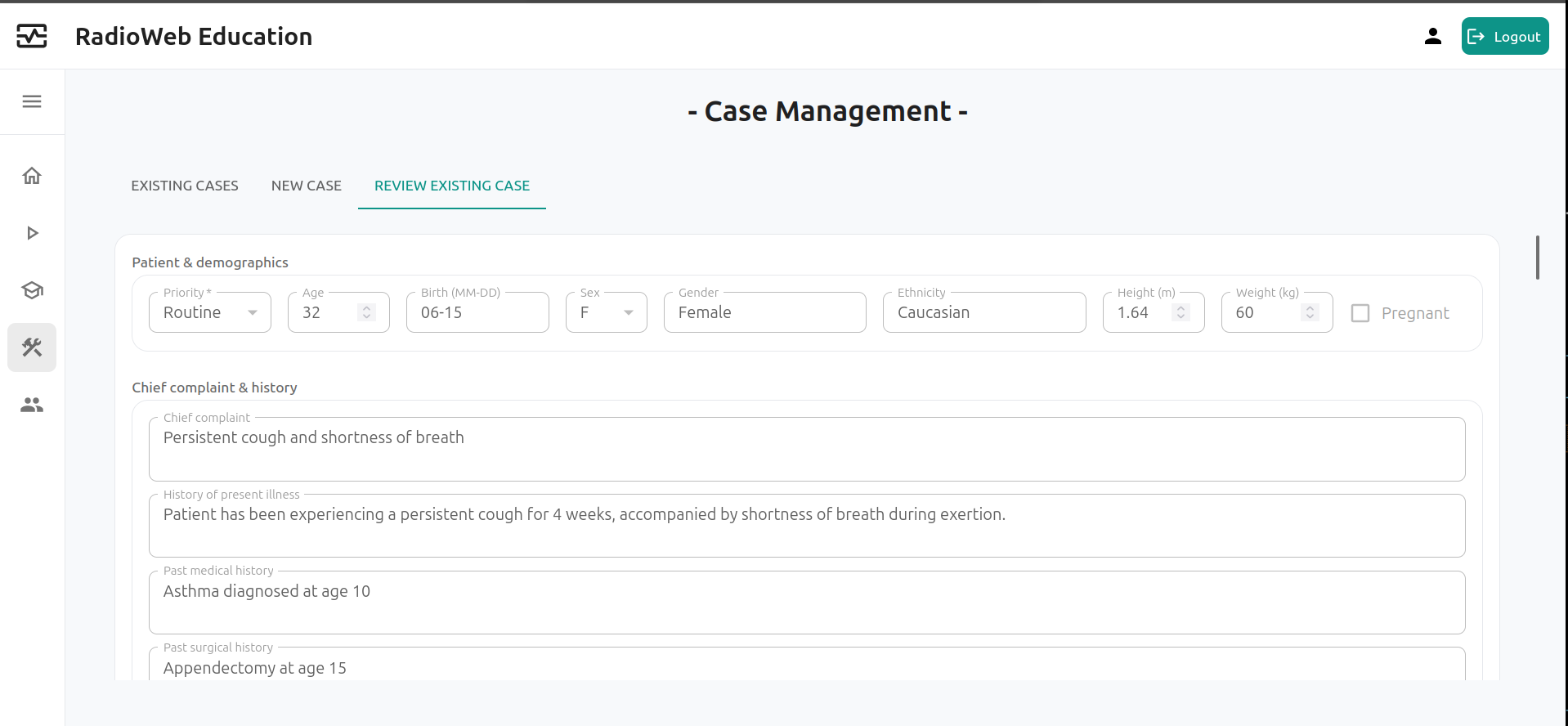
A case needs to be approved by a peer before appearing in visual trainings and in simulation.
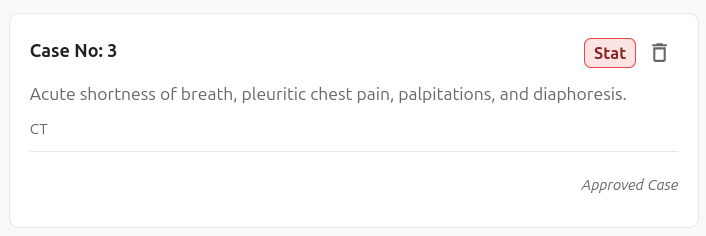
Once approved, it will be displayed as such on the cases managment page.